
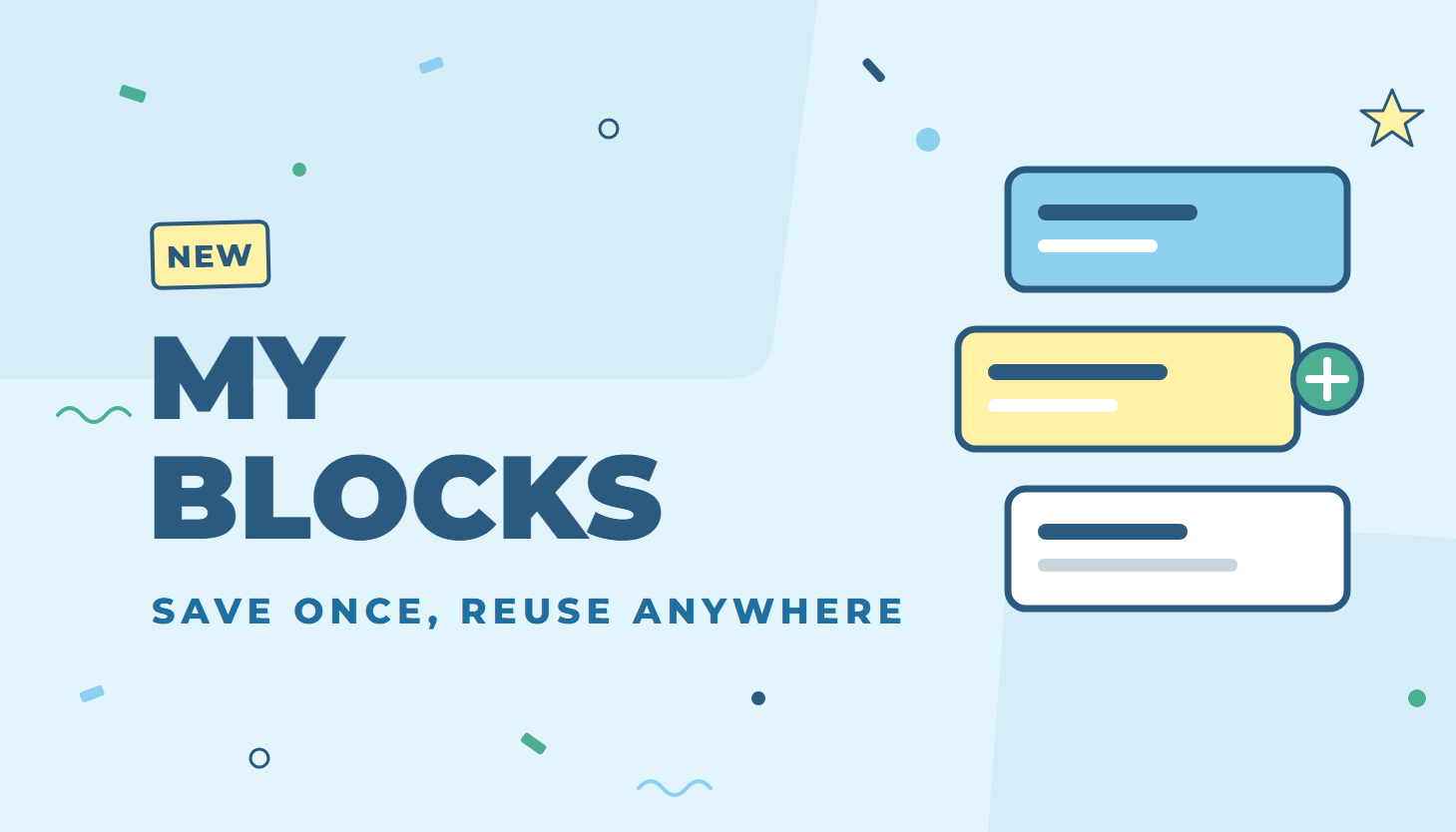
Building the same banner, promo strip or product row on page after page takes time, and copies drift apart. With My Blocks, you build it once in the Zoey Visual Designer, save it, and drop a copy onto any page in a couple of clicks.
How it works
- Save: open any block’s menu, choose Save to My Blocks and give it a name. Everything inside the block comes with it.
- Reuse: open the Add menu and switch to the My Blocks tab. Drag a saved block onto the page, click it, or use Add to page to place it next to the block you have selected.
- Shared with your team: everyone who edits your store sees the same library.
- Safe to change: every copy is a normal, independent block. Editing a copy or deleting a saved block never changes the pages that already use it.
A redesigned Add menu
The Add menu itself got a makeover too:
- Live previews: every block shows a preview of what it will look like, with its name underneath.
- Categories: browse by category on the left.
- Search: find blocks by name, section or category. Searching for “h2” or “heading 2” finds the heading blocks, for example.
- Drag and drop: start dragging and the menu steps out of the way so you can drop the block exactly where you want it.
My Blocks is available now in the Zoey Visual Designer for every Zoey store. There is nothing to turn on.